The short version
Oracle APEX 26.1 makes editable Interactive Grids feel closer to a spreadsheet. The release notes list native clipboard support for Copy, Cut, Paste, Paste Insert and dragging a range of cells from a spreadsheet or another tool that provides tabular data.
That matters because many business users already work this way. They copy rows from Excel, paste status updates from Google Sheets or move tab-separated values from an email into an application.
The important point is not that every grid magically becomes a spreadsheet. The win is that APEX now gives developers a native path for common clipboard workflows, so fewer pages need fragile custom paste handlers.
What Oracle added
For editable Interactive Grids, Oracle documents these clipboard features in APEX 26.1:
| Feature | What it does |
|---|---|
| Copy | Copies selected grid data to the clipboard. |
| Cut | Copies selected grid data and removes it from the editable grid. |
| Paste | Pastes clipboard data over existing grid cells. |
| Paste Insert | Inserts new rows and pastes clipboard data into them. |
| Drag tabular ranges | Supports dragging a range of cells from a spreadsheet or another tabular source. |
Oracle also notes a few operational details that are easy to miss:
- Clipboard features work when the grid is not in edit mode.
- Paste depends on the source application putting tabular data on the clipboard in a suitable format.
- The pasted data still needs to be appropriate for the target columns, such as numbers for number fields.
- Select Lists and LOV columns can be more complex because display values and stored return values may differ.
- Browser clipboard access requires HTTPS and may require user permission.
The developer mental model
Think of this as spreadsheet-style input for the Interactive Grid model.
When a user pastes a block of tabular data, APEX maps it into the grid starting from the selected position. That makes column design important.
If users copy data like this:
SKU ITEM_NAME CATEGORY QTY UNIT_PRICE DUE_DATE STATUS NOTESThe target grid should present the editable paste path in the same order:
SKU, ITEM_NAME, CATEGORY, QTY, UNIT_PRICE, DUE_DATE, STATUS, NOTESKeep generated totals, protected fields and read-only helper columns outside the main paste path. A generated column such as TOTAL_AMOUNT is useful, but it should not sit in the middle of a paste target if users are expected to paste spreadsheet ranges.
Paste vs Paste Insert
There are two workflows worth testing separately.
Paste over existing rows is for updates. A user selects a starting cell and pastes values over the existing cells. This is useful for correcting quantities, due dates, statuses or notes.
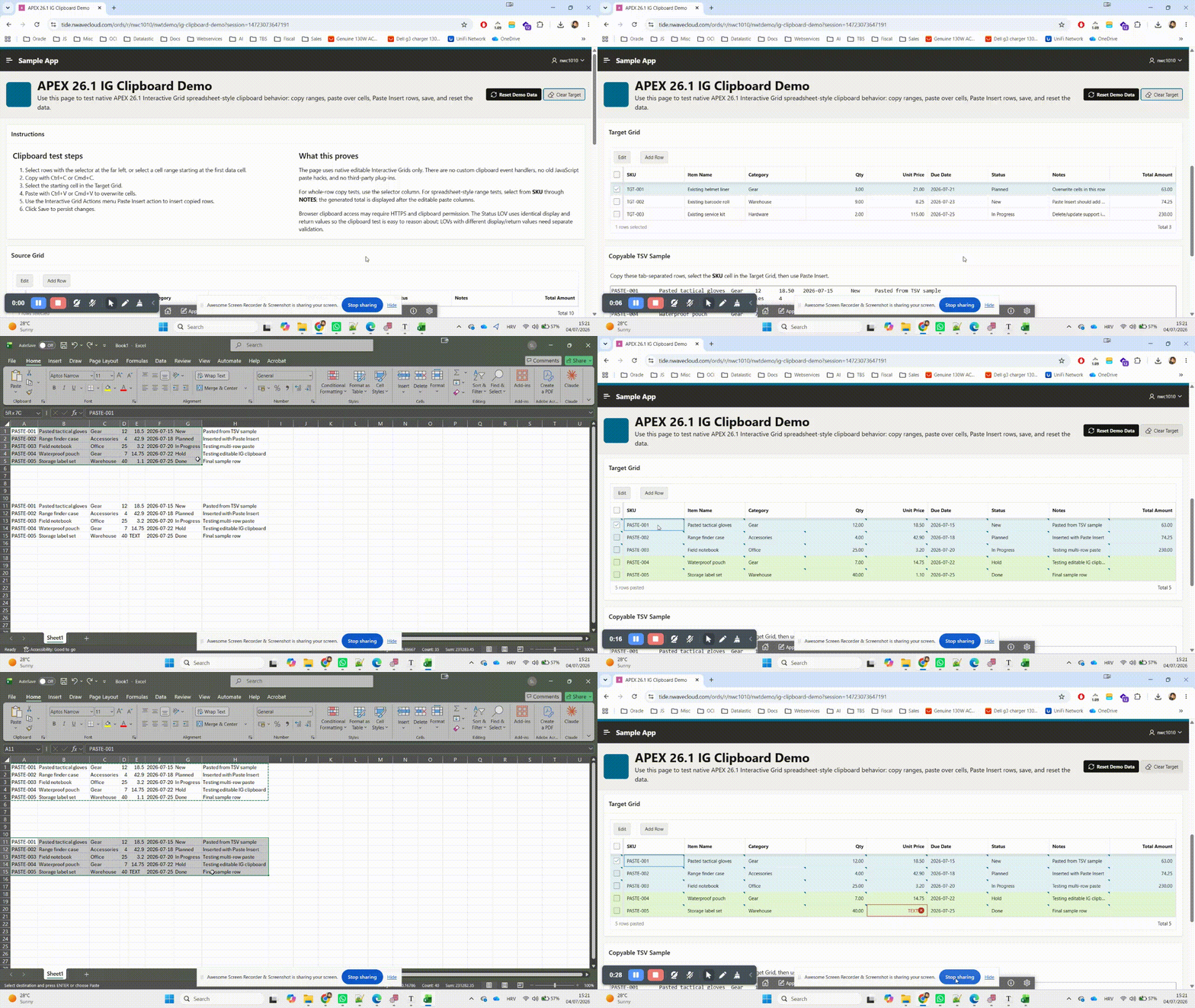
Paste Insert is for adding rows. A user copies rows from a spreadsheet, selects the first editable target column, runs Paste Insert, reviews the new rows and then saves.
For a normal table-backed editable Interactive Grid, keep the standard Save behavior and declarative DML path. Pasted values should be tested through the same conversions, validations and persistence path as ordinary grid edits.
Column design rules
Clipboard-friendly grids are mostly about predictable shape:
- Put editable paste columns together.
- Keep generated or read-only columns outside the common paste path.
- Use clear date and number formats.
- Test Select List and LOV columns deliberately.
- Keep column order aligned with the spreadsheet users copy from.
- Use row selectors when users need whole-row operations.
- Test the grid over HTTPS, because browser clipboard APIs require a secure context.
- Keep custom JavaScript out of the clipboard path unless there is a specific gap you cannot solve declaratively.
This is the difference between “paste seems to work in a demo” and “paste is reliable enough for a production workflow.”
LOV columns need extra care
LOV columns are the first place to slow down and test.
The safest starting point is a simple list where the display value and return value are the same:
New
Planned
In Progress
Done
Hold
If the user sees In Progress but the database stores IN_PROGRESS, clipboard behavior needs closer validation. Test what users will actually paste, especially if data comes from Excel exports, translated labels or older spreadsheets.
Practical test plan
Use a small test page before enabling clipboard-heavy workflows in a business process:
| Test | Why it matters |
|---|---|
| Copy a single cell | Confirms basic clipboard access and selection behavior. |
| Copy a rectangular range | Confirms spreadsheet-style range mapping. |
| Paste over existing rows | Confirms updates land in the expected columns. |
| Paste Insert multiple rows | Confirms insert workflow and save behavior. |
| Paste from Excel or Google Sheets | Confirms real user source data works. |
| Paste from plain TSV text | Confirms simple tabular text works. |
| Paste invalid text into number/date columns | Confirms conversion and error handling. |
| Paste invalid LOV values | Confirms how display and return values behave. |
| Save, refresh and re-query | Confirms persistence, not just client-side display. |
Also test keyboard and mouse flows separately. Users may select cells, ranges or rows in different ways, and APEX 26.1 includes selection behavior changes alongside the clipboard work.
What this removes
Before native clipboard support, teams often reached for custom browser code:
paste event listener
manual TSV parser
grid model lookup
cell-by-cell assignment
custom insert logic
extra validation glue
That kind of code can work, but it is easy to make brittle. With APEX 26.1, the better default is to start with the native editable Interactive Grid behavior, then add custom logic only where the application genuinely needs it.
For hosted APEX environments, this is also a reminder to treat browser security, HTTPS, ORDS, APEX versioning and application testing as one operational surface. For production planning, see the Cloud Hosting overview and hosting plans.
FAQ
Is copy new in APEX 26.1?
Oracle notes that Copy existed before, but has improvements in this release. The broader APEX 26.1 change is native editable Interactive Grid support for the full clipboard workflow, including paste and paste insert.
Does Paste Insert automatically save new rows?
No. Paste Insert inserts rows into the editable grid. Users still need to save through the normal Interactive Grid save process, and the application should validate that the resulting rows persist correctly.
Do clipboard features work over HTTP?
Browser clipboard access requires a secure URL, so plan to test over HTTPS. Browsers may also ask the user for clipboard permission.
Can users paste from Excel?
Yes, if the source puts tabular data on the clipboard in a suitable format and the pasted values match the target grid columns. Always test with real spreadsheets, not only synthetic examples.
Are LOV columns automatic?
Not always. Oracle explicitly calls out Select Lists and LOVs as potentially complex because display values and stored values can differ. Test those columns with real pasted values before relying on the workflow.