The short version
“Show me everything except Cancelled” used to need a second facet, a custom filter or a lot of ticking boxes. Not anymore:
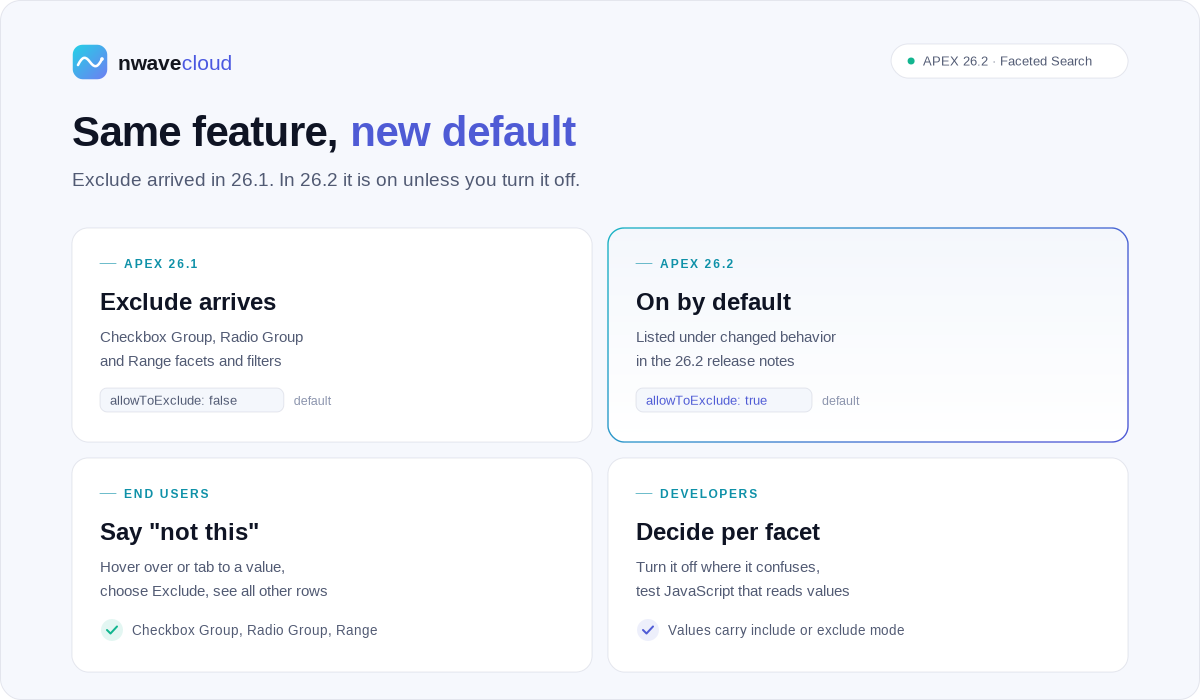
- 26.1 added it. “Facets and filters for Checkbox Group, Radio Group, or Range now have an Exclude option that filters the report by all options except for the excluded ones.”
- 26.2 turns it on. The release notes list it under changed behavior: “the Allow to Exclude facet attribute is now enabled by default for faceted search and smart filters.”
- Users pick it per value. Hover over or tab to a facet value and choose Exclude.
- Developers can turn it off per facet, with the Allow to Exclude attribute, or
allowToExcludein APEXlang.
What end users see
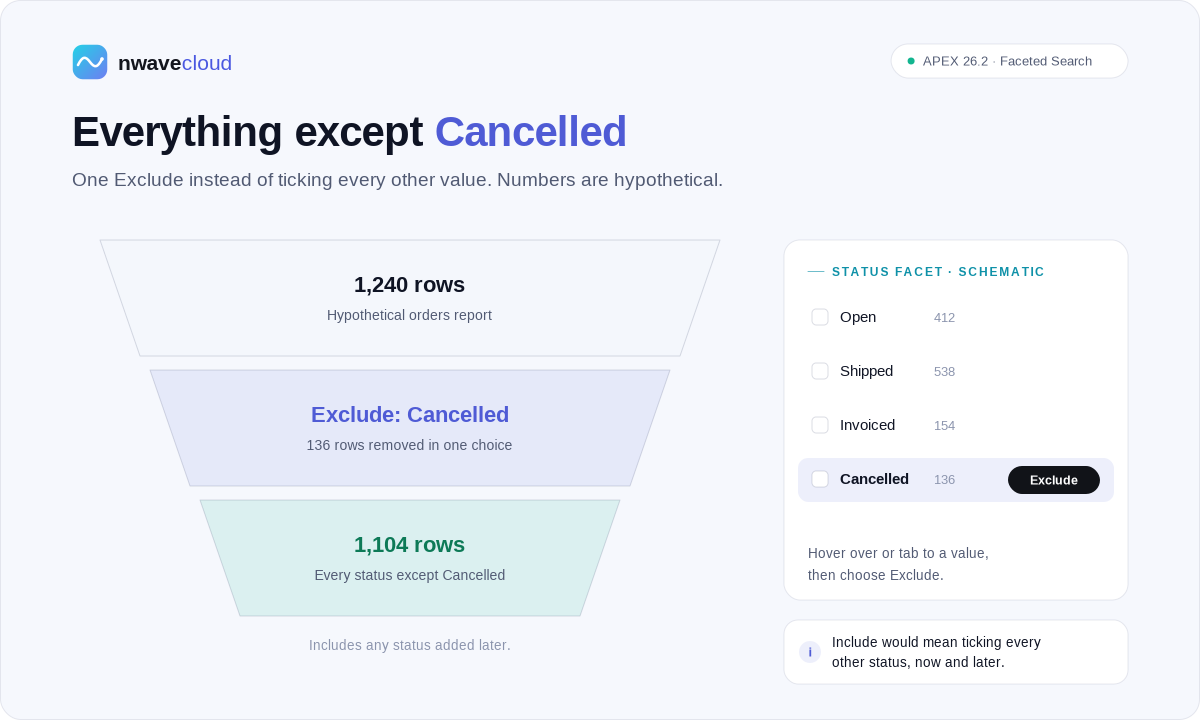
Oracle’s 26.1 Faceted Search post describes the interaction: “When exclude is enabled, users can hover over or tab to a facet value and choose Exclude.” Then “the report then refreshes to show all rows except those matching that value.”
Picture a hypothetical orders report with a Status facet. Before, a user who wanted everything but cancelled orders had to tick every other status, and remember to tick any new status that appeared next month. With Exclude, one choice says what they mean.
Which facets support it
Exclude applies to three facet types, in Faceted Search and Smart Filters alike:
- Checkbox Group
- Radio Group
- Range
The APEXlang reference documents the property as allowToExclude, a boolean that applies to checkboxGroup, radioGroup and range facets. Its default value is the change in 26.2: true in the 26.2 reference, false in the 26.1 reference.
On the client side, the 26.2 JavaScript API documents the matching allowExclude option of the facet list control: “If true a user can toggle the facet between include and exclude mode, the switch is displayed at control value level.”
What to check after upgrading
The release notes do not say whether existing facets change when an application is upgraded, so check rather than assume. In an APEXlang export, search for allowToExclude. In Page Designer, look at each Checkbox Group, Radio Group and Range facet.
Then decide per facet:
- Keep it where “everything except” is a natural question: status, region, product line, owner.
- Turn it off where exclusion makes little sense to users, for example a facet meant to pick exactly one context, or a range where “outside this range” would surprise them.
- Check custom JavaScript. The 26.2 JavaScript API notes that facet values carry the mode: values are prefixed for exclude and include. Code that reads or sets facet values directly should be tested with an excluded value.
- Tell users. A one-line hint on busy search pages helps people discover the option.
Bottom line
Exclude is a small feature with a big effect on how people filter: it lets them say “not this” directly. APEX 26.2 makes it the default, which is the right call for most business reports. Spend ten minutes per search page deciding where it does not fit.
FAQ
Which APEX release introduced Exclude in Faceted Search?
APEX 26.1, for Checkbox Group, Radio Group and Range facets and filters in Faceted Search and Smart Filters.
What changed in APEX 26.2?
The Allow to Exclude facet attribute is now enabled by default. In the APEXlang reference, allowToExclude defaults to true in 26.2 and false in 26.1.
How does a user exclude a value?
Hover over or tab to the facet value and choose Exclude. The report refreshes to show all rows except those matching that value.
Can I turn Exclude off?
Yes. Set the Allow to Exclude attribute off for the facet, or allowToExclude: false in APEXlang.
Does Exclude work with every facet type?
No. It applies to Checkbox Group, Radio Group and Range facets.