The short version
APEX 26.1 introduced AI Interactive Reports: users type what they want to see, and APEX turns the request into ordinary Interactive Report settings such as filters, sorts and pivots. The important design choice was that the AI produces report settings, not SQL.
APEX 26.2, generally available since October 6, 2026, builds on that in three ways:
- Key phrases handle common commands like
sort amount descdirectly, without asking the AI service. - Natural-language computed columns let users describe a calculation in business terms and get a standard, editable report computation.
- A modernized Interactive Report UI with filter chips, multi-select header filters and proper numeric and date range filters.
This article walks through each one, shows how to set the feature up and lists what we would check before switching it on for real users.
Quick recap: how AI Interactive Reports work
When natural language support is enabled on an Interactive Report, users get two entry points:
- Search with AI in the report’s search bar, for a quick request.
- The Interactive Report Assistant, a panel next to the report for a back-and-forth conversation.
Either way, the request is mapped to the report’s existing columns and capabilities, and the result is applied as normal report settings. Those settings show up as chips, can be removed individually and can be saved like any other report customization.
The report itself remains the source of truth. The AI is a faster way to configure it, not a new way to query the database.
Key phrases: a fast path that skips the AI
Many requests are not really questions. “Sort by amount” or “hide the notes column” are commands, and sending them to a large language model adds latency and cost for no benefit.
APEX 26.2 introduces key phrases: short commands that match predefined templates and are applied without AI interpretation.
| Template | What it does |
|---|---|
filter %column by %value |
Applies a filter |
search %column for %value |
Runs a contains search on one column |
sort %column (optional asc, ascending, desc, descending) |
Sorts the column, ascending by default |
show %column / hide %column |
Shows or hides a column |
pivot %row_column by %column_column |
Creates a pivot |
break %column |
Creates a control break |
reset |
Resets customizations and filters |
A key phrase is not applied blindly. When a request matches a template, APEX checks the column and value names against the report’s metadata, the capabilities enabled for the report and any list of values or reference data before it applies the action.
If a request does not fit, the behavior depends on the report:
- On an AI-enabled report, requests that are ambiguous, unsupported, malformed or too complex go through the normal AI flow.
- On a report without AI, key phrases are treated as a regular row search.
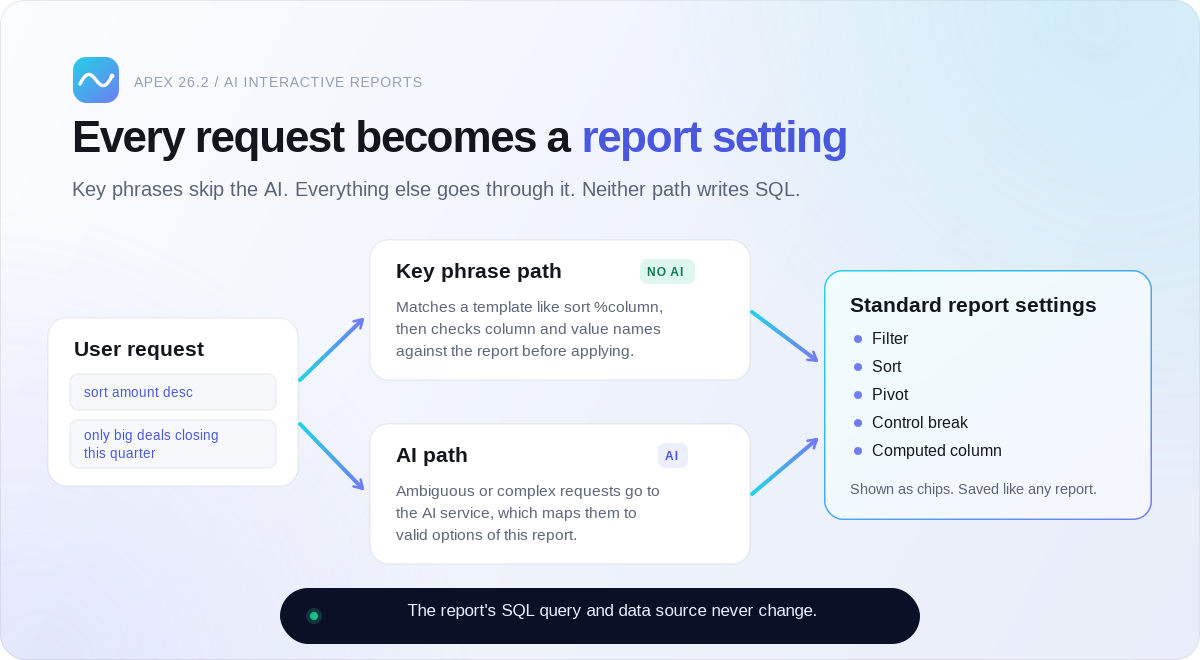
The practical effect is that the most frequent actions become instant and deterministic, and AI calls are reserved for requests that actually need interpretation.
Natural-language computed columns
Computed columns have been part of Interactive Reports for a long time, but most business users never found them. Writing an expression with column identifiers is not something a sales manager does on a Tuesday afternoon.
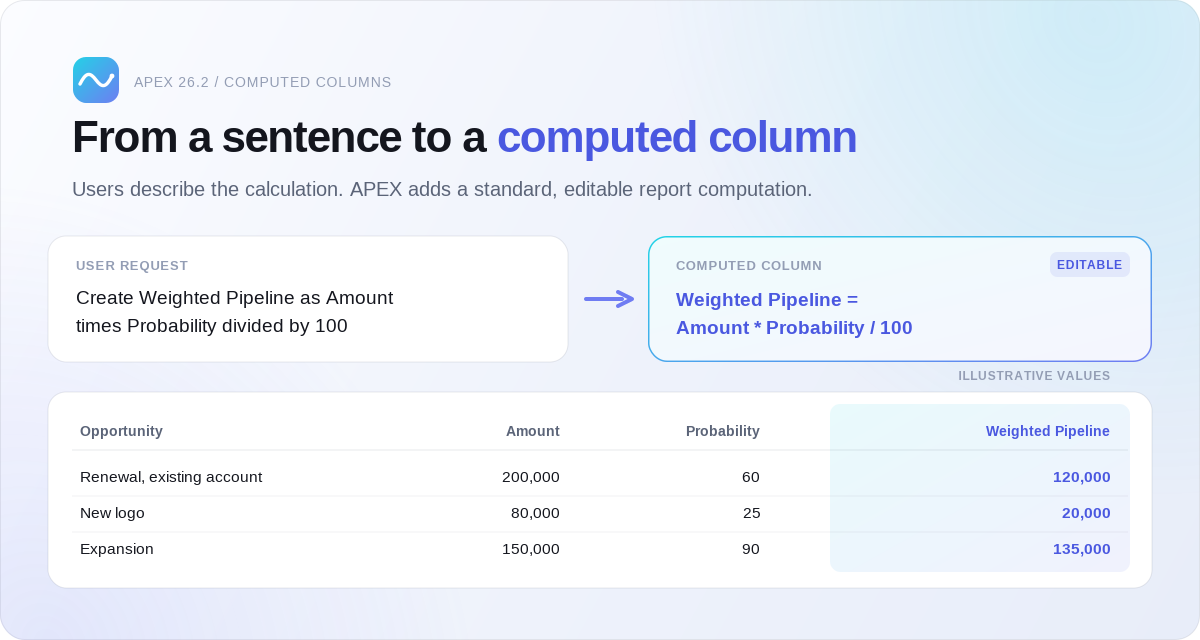
In APEX 26.2, users can describe the calculation instead. Oracle’s example:
Create Weighted Pipeline as Amount times Probability divided by 100APEX maps this to a valid computation over the eligible report columns:
Weighted Pipeline = Amount * Probability / 100For a row with an Amount of 200,000 and a Probability of 60, the new column shows 120,000.
Three details make this more than a demo:
- It is a standard customization. The result appears in the existing computation interface, so users can review it, edit the expression, save it in a report or remove it.
- The source stays untouched. The report’s SQL query and data source do not change. The computation is applied on top of the report like any other customization.
- It uses the report’s columns. The AI maps the request to eligible columns that already exist in the report. It cannot invent data the report does not have.
Oracle’s announcement does not list which functions, operators or data types computed columns support through natural language, so test the calculations your users actually need. The 26.1 documentation also recommends one grouping or calculation per request rather than several in one sentence.
Why “settings instead of SQL” is the right design
It is tempting to build AI reporting as text-to-SQL: the user asks a question, the model writes a query, the database runs it. APEX deliberately does not do that here, and for business applications we think that is the correct call.
- Security stays where it was. The report query, its authorization and any row-level security behind it are unchanged. The AI can only work with what the report already returns.
- Results are explainable. Every change is a visible chip or a computation with a readable expression. Users and support teams can see exactly why the report looks the way it does.
- Results are reversible. Every AI action can be edited, removed or reset with the same tools users already know.
- Behavior is predictable. Key phrases are deterministic, and the AI path is constrained to the report’s own columns and options.
AI makes the report easier to use. It does not become a second, unreviewed way into your data.
The modernized Interactive Report UI
The AI features ship alongside a broad refresh of the Interactive Report interface itself, which benefits every report, AI-enabled or not:
- Filter chips show active filters and settings, so users can see the report state and remove or change one filter without reopening dialogs.
- Multi-select header filters accept several values. Reopening a column header shows the current selection and updates the existing filter instead of adding a conflicting one.
- Numeric range filters let users set minimum and maximum values instead of picking from a list of distinct values.
- Date filters support presets, exact dates and start and end ranges.
- Clearer dialogs for filters, charts, pivots and Group By, with chart settings organized by type, title, orientation, grouping, metrics and drill-down.
- Layout management with drag-and-drop column ordering, better frozen-column support and a reorganized Actions menu. The reset control appears only when something has been customized.
Oracle states that existing saved reports, subscriptions, downloads and report management remain compatible, which matters for applications with years of saved user reports. It is still worth a quick regression pass on your most-used reports after the upgrade.
Setting it up
The configuration below follows the APEX documentation for natural language support in Interactive Reports. Check the 26.2 documentation for any changes in your exact release.
Workspace and application:
- Create a Generative AI Service under Workspace Utilities. APEX 26.2 adds support for OpenAI Responses and compatible APIs, Google Gemini Interactions and supported OCI Generative AI models.
- In the application’s AI attributes, select the Generative AI Service and define the consent message users see.
Report region (Page Designer, Attributes tab):
- Generative AI, Natural Language Support: switch on.
- Generative AI, Default Search Mode:
Search with AIorRow Search. - Generative AI, Report Context: a plain-language description of what the report shows and how it is used.
Columns:
- Column Context: what the column means, its units and any special values.
- Reference Data Type: a shared component list of values or a SQL query that supplies valid values, which helps APEX match the names users type to real values.
For example, a reference data query for an assignee column:
SELECT DISTINCT assignee d
              , assignee r
  FROM eba_project_tasks
Context is optional, but it is the cheapest accuracy improvement available. A report called “Opportunities” with columns AMT and PROB_PCT gives the model far less to work with than a report context that says what a weighted pipeline is and column contexts that say “deal value in EUR” and “win probability from 0 to 100”.
What to check before production
AI Interactive Reports are a strong feature, but they are still an integration with an external service. Before enabling them for real users, we would work through this list:
- Data governance. The documentation describes report context, column context and reference data being used by the AI. It does not spell out in detail what is sent to the AI service for every request, so confirm with Oracle’s documentation and your security team what leaves the database, and choose the provider, region and contract terms accordingly.
- Consent wording. Write a consent message that matches what actually happens, in language your users understand.
- Column names and context. Key phrases match against real column and value names, so clear headings and good context make both paths more reliable.
- Supported requests. The AI works with the report’s existing columns and capabilities. Open-ended analytical questions such as “why are sales down?” are not supported, so set user expectations early.
- Monitoring and cost. Track AI service usage like any other external API. Key phrases help here by keeping routine commands away from the model.
- Platform readiness. Outbound access to the AI provider, credentials and network rules should be planned at the platform level. Our article on AI-ready infrastructure for Oracle APEX covers that layer.
APEX 26.2 is available now for on-premises installations, with Oracle Autonomous AI Database following shortly and OCI and multicloud rollouts over the coming weeks. If you want an environment that is upgraded, monitored and ready for AI integrations without running it yourself, see Cloud Hosting and the plans page.
Bottom line
APEX 26.2 makes AI Interactive Reports faster for simple commands, more useful for real business calculations and nicer to use for everyone, while keeping the design rule that matters most: the AI changes report settings, never the query.
For teams with report-heavy applications, this is one of the most practical AI features in the release.
FAQ
Do key phrases call the AI service?
No. Requests that match a key phrase template are validated against the report and applied without AI interpretation.
What happens when a request does not match a key phrase?
On an AI-enabled report, it goes through the normal AI flow. On a report without AI, it is treated as a regular row search.
Does a natural-language computed column change the report’s SQL?
No. Oracle states that the underlying SQL query and data source stay unchanged. The computed column is a standard report customization.
Can users edit or remove a computed column created this way?
Yes. It appears in the existing computation interface, where users can review, edit, save or remove it.
Which functions can a natural-language computed column use?
Oracle’s announcement does not list supported functions, operators or data types beyond eligible report columns. Test the calculations your users need before rollout.
Will existing saved reports keep working after the UI update?
Oracle says existing saved reports, subscriptions, downloads and report management remain compatible. A quick regression test of key reports after upgrading is still sensible.