The short version
APEXlang arrived in Oracle APEX 26.1 as a readable, text-based format for APEX applications. Pages and shared components live in .apx files that you can keep in Git, review in pull requests and validate with SQLcl. We covered what that means for modernization in Oracle Forms to APEX Just Got Faster.
What 26.1 did not give you was a small unit of deployment. Change one page, and getting it back into the database still meant importing the whole application.
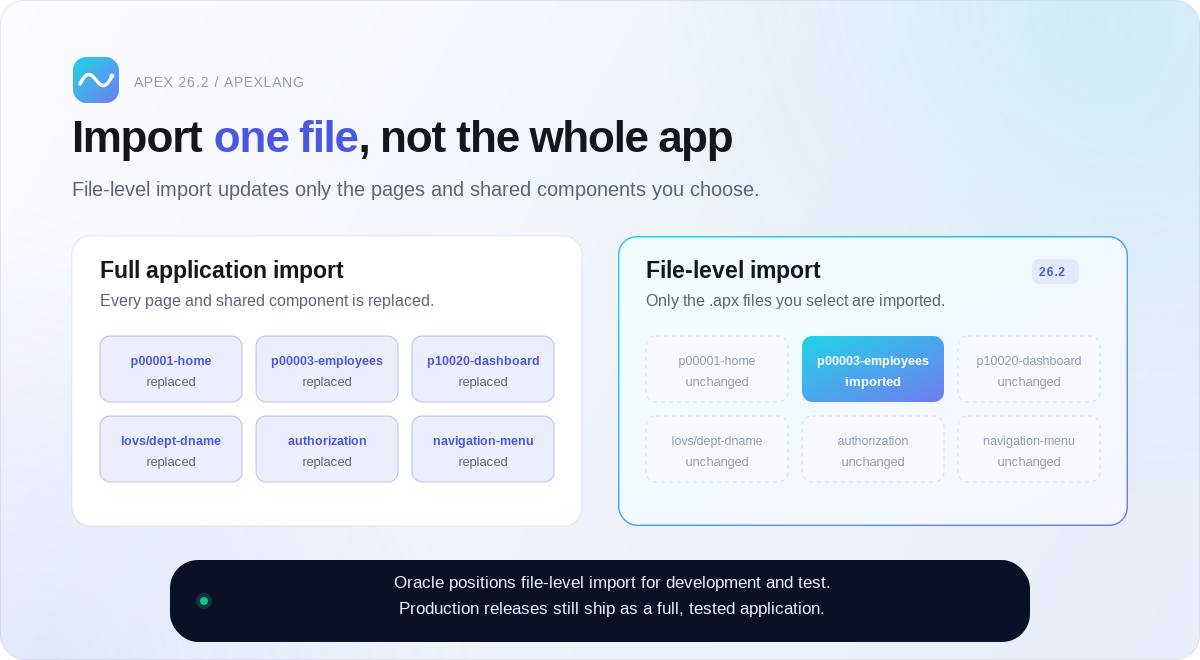
APEX 26.2, generally available since October 6, 2026, closes that gap with file-level import. You can import a single page or shared component from its .apx file into an existing application. Every other component stays exactly as it was.
It sounds like a small feature. For teams that work in Git, it changes the daily development loop.
Why full-application import was the bottleneck
A full application import replaces every page and shared component with the version in your export. That is the right behavior for a release. It is the wrong behavior for a one-line fix during development.
In practice, three things hurt:
- Slow feedback. Editing a label in one page and then re-importing hundreds of components is a long loop for a small change.
- Large blast radius. Every import touches the whole application, so every import is a chance to replace something you did not mean to change.
- Shared environments. If a colleague changed a list of values in App Builder after your export, your full import silently replaces their work.
File-level import shrinks each update to the component you actually changed.
What you can import, and what you cannot
Oracle’s announcement is specific about the scope of the first release:
| Area | APEX 26.2 behavior |
|---|---|
| Pages | Supported, for example pages/p00003-employees.apx |
| Shared components | Supported, for example shared-components/lovs/dept-dname.apx |
| Themes and templates | Not supported |
| Plug-ins | Not supported |
| Workspace components | Not supported |
| App Builder | No file-level import; use SQL Developer for VS Code or SQLcl |
| Target application | Must already exist in the target workspace, or the import fails |
| Export version | The APEXlang export must be made with APEX 26.2 or later |
Two practical consequences follow. First, if you exported your application with 26.1, export it again after upgrading to 26.2 before you rely on file-level import. Second, theme and plug-in changes still travel with a full application import.
Importing a file from SQL Developer for VS Code
In the SQL Developer extension for VS Code, an Import File button appears next to Import Application. It shows up only when the extension is connected to a database running APEX 26.2 or later, and only for an application exported with 26.2 or later.
The flow is simple:
- Open the application’s APEXlang folder.
- Open the
.apxfile you changed. - Click Import File in the editor toolbar.
Only the file that is open in the editor is imported.
Dependencies need a little care. If a page now uses a shared component that does not exist in the target application yet, for example a new list of values, import the shared component’s .apx file first and the page second.
Importing files with SQLcl
SQLcl gives you the same capability from the command line, which is what you want for scripts and CI. The -files paths are relative to your current working directory.
Import one page from the parent directory:
SQL> apex import -input employee-portal/ -files employee-portal/pages/p00003-employees.apxOr from inside the application directory:
SQL> cd employee-portal
SQL> apex import -files pages/p00003-employees.apx
Import several files in one call by listing them after -files:
SQL> apex import -input employee-portal/ -files employee-portal/pages/p00003-employees.apx employee-portal/shared-components/lovs/dept-dname.apxAccording to Oracle, SQLcl resolves dependencies between the listed files, so the order does not matter here.
The rest of the APEXlang toolchain is unchanged from 26.1. You export with -exptype apexlang and validate with apex validate:
SQL> apex export -applicationid 104 -exptype apexlang
SQL> apex validate -input /path/to/employee-portal
Validation also works without a database connection. Start SQLcl with /nolog and validate from the application’s root directory:
$ sql /nolog
SQL> apex validate -input .
That offline mode is useful in CI pipelines, and Oracle’s documentation points out that it also suits AI coding agents checking their own edits before anything touches a database.
One rule from the documentation worth repeating: do not edit .apex/apexlang.json by hand. It records the metadata version the application was exported with.
Compare and pull: the feature that makes this safe for teams
File-level import changes only the files you specify. But the file you import does replace that component in the database. If someone edited the same page in App Builder after your last export, importing your local version would replace their change.
That is why Oracle pairs file-level import with compare and pull in SQL Developer for VS Code 26.3 or later. Before importing, you:
- Compare your local APEXlang source with the application in the connected database.
- Pull the differences you want into your local
.apxfiles. - Review and resolve conflicts locally.
- Validate.
- Import the file.
Oracle’s own example is a good picture of a normal week: one developer adds a column in App Builder while another adds a button to the same page in VS Code. The VS Code developer pulls the App Builder change into the local file first, then imports a version that contains both.
Working Copies fit naturally
APEX Application Working Copies give each developer an isolated copy of an application to work in. With 26.2 you can point the APEXlang workflow at a Working Copy, import files into it as often as you like, and merge the result back into the main application through App Builder when the change is ready.
For larger teams, that combination is the cleanest setup: Git for history and review, a Working Copy for isolation, file-level import for fast iteration.
A practical workflow
Here is the workflow we recommend for teams adopting file-level import.
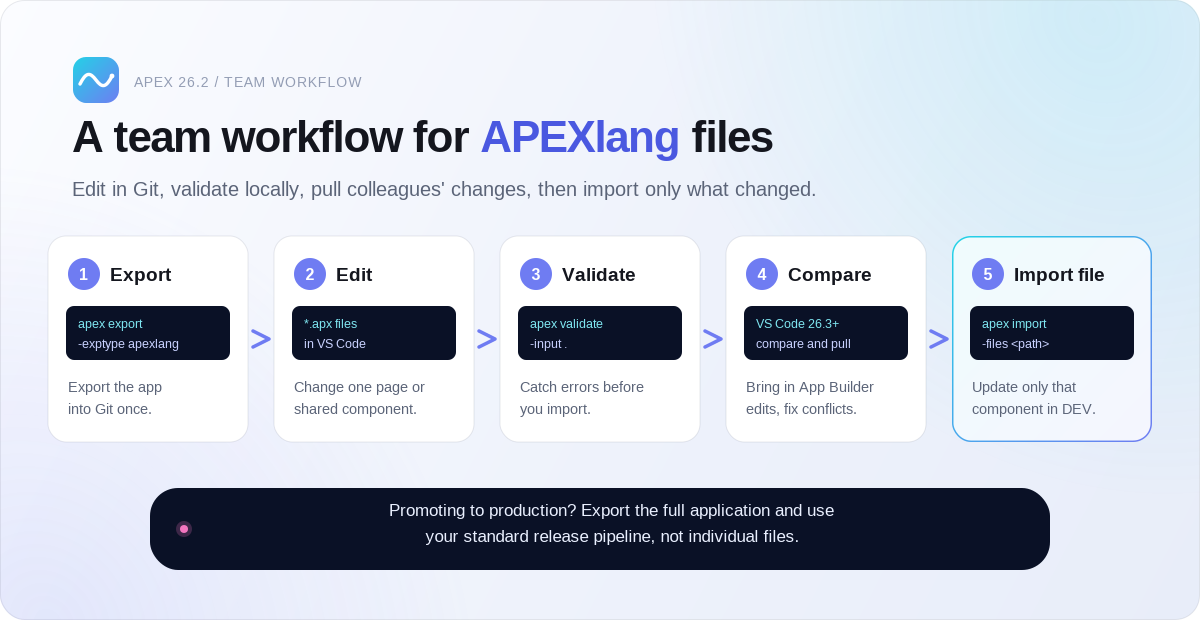
- Export once and commit. Export the application with
apex export -exptype apexlangon APEX 26.2 and commit the folder to Git. - Branch per change. Keep each feature or fix on its own branch so reviews stay small.
- Edit the
.apxfiles. In VS Code, by hand or with an AI coding assistant. - Validate locally and in CI. Run
apex validate -input .before every import and on every pull request. - Compare and pull. Bring in anything changed in App Builder since your export and resolve conflicts in the file.
- Import only what changed. Use Import File or
apex import -filesagainst your development application or Working Copy. - Test, then merge. Review the diff in the pull request like any other code.
- Release as a full application. For test and production, export the complete application and run it through your normal release pipeline.
Where file-level import does not belong
Oracle is clear that file-level import is mainly for development and testing. An imported file may not include every related dependency, and a set of individually imported files is not the same thing as a complete, tested application version. For production deployments, Oracle recommends your standard full-application process.
We agree, and would put it more strongly: treat file-level import as the hot reload of APEX development, not as a patching mechanism for production. Production should run an application version that exists as one artifact in Git, passed validation and testing as a whole, and can be redeployed or rolled back as a unit. That also keeps change management and audit trails simple.
What 26.2 means for your platform versions
APEXlang tooling spans APEX itself, ORDS and SQLcl, and the client tools now matter too: file-level import needs a database running APEX 26.2, and compare and pull needs SQL Developer for VS Code 26.3 or later. As we wrote when 26.1 arrived, plan APEX, ORDS and SQLcl upgrades together and validate them as a set in staging.
Availability also differs by platform. APEX 26.2 is available now for on-premises installations, with Oracle Autonomous AI Database following shortly and OCI and multicloud rollouts over the coming weeks.
If you would rather not track those moving parts yourself, managed Oracle APEX hosting is what we do. The Cloud Hosting overview explains how environments, upgrades and support work, and the plans page lists the available options.
Bottom line
APEXlang made APEX applications readable. File-level import in 26.2 makes them workable in small pieces.
Use it to shorten the edit, import and test loop in development. Pair it with compare and pull so you never overwrite a colleague. And keep production releases as full, versioned application exports.
FAQ
Can I import a single page from App Builder?
No. In APEX 26.2, file-level import is available only through SQL Developer for VS Code and SQLcl.
Which components cannot be imported individually?
Themes, templates, plug-ins and workspace components. Changes to those still require a full application import.
Will importing one file overwrite other changes?
Only the components in the files you import are changed. Everything else in the application stays as it is. If someone changed the same page or component in App Builder, your file replaces their version, so use compare and pull first.
Does the target application need to exist?
Yes. File-level import updates an existing application in the target workspace. If the application does not exist there, the import fails.
Should I use file-level import for production deployments?
Oracle positions it mainly for development and testing and recommends the standard full-application process for production. We recommend the same.
Which versions do I need?
A database with APEX 26.2 or later and an APEXlang export made with 26.2 or later. Compare and pull requires SQL Developer for VS Code 26.3 or later.