The short version
Type sort amount desc into the search bar of an Oracle APEX 26.2 Interactive Report with an Amount column, and the report sorts. No prompt goes to a language model and no tokens are spent.
APEX 26.2, generally available since October 6, 2026, adds key phrases: short commands that follow fixed templates. When the input matches a template, APEX checks the column and value references against the report and applies the action itself. In the words of the release notes, the action is “performed locally by APEX without invoking an AI service.”
- Twelve templates for filter, search, sort, show, hide, pivot, control break and reset.
- Validation against report metadata, enabled capabilities and LOV or reference data.
- Fallback to the AI flow on AI-enabled reports, and to normal search processing elsewhere.
- All Interactive Reports, with or without Natural Language Support.
Our overview of AI Interactive Reports in APEX 26.2 covers the wider release. This article stays with key phrases: templates, validation, report design, testing, and what Oracle has not documented yet.
Where key phrases fit
A short recap. An Interactive Report can enable Natural Language Support in its Generative AI attributes, with a Default Search Mode of Search with AI or Row Search and an Assistant panel for follow-ups. For an AI request, APEX sends the model the report definition, column metadata, available reference values and current report state (not row data) and gets back ordinary report settings. Natural Language Support is off by default.
Key phrases sit in front of that flow. Oracle’s 26.2 new features overview puts it plainly: “Not every report request requires AI interpretation.” A sort is a sort. Asking a model to work that out again adds latency, cost and a small chance of a wrong answer.
The full template list
Oracle’s 26.2 Interactive Reports blog lists these templates. %column stands for a report column and %value for a value.
| Key phrase template | Action | Actions Menu attribute (our mapping) |
|---|---|---|
filter %column by %value |
Filter the column | Filter |
search %column for %value |
Search the column, contains matching | Not documented |
sort %column |
Sort ascending (default) | Sort |
sort %column asc or sort %column ascending |
Sort ascending | Sort |
sort %column desc or sort %column descending |
Sort descending | Sort |
show %column |
Display the column | Select Columns |
hide %column |
Hide the column | Select Columns |
pivot %row_column by %column_column |
Pivot by a row column and a pivot column | Pivot |
break %column |
Create a control break | Control Break |
reset |
Clear report customizations and filters | Reset |
The third column is ours, not Oracle’s. The blog says phrases are validated against the capabilities enabled for the report, and these are the matching attributes in the 26.2 documentation for the Interactive Report Actions menu.
The release notes add examples for a report with the columns Status, Customer Name, Sale Date, Description and Category Name: filter status by Completed, search customer name for John, sort by sale date descending, break on category name, pivot category name by status, hide category name, show category name and reset. Two of them carry connector words (sort by, break on) that the blog templates do not show, so the matcher appears to allow some variation. Oracle does not define how much.
Notice what is missing: highlight, aggregate, chart, group by, compute, rows per page and save. Those still go through the Actions menu, or through the AI on an AI-enabled report.
For a hypothetical sales report with Amount, Region, Status and Notes columns, users could type sort amount desc, filter region by EMEA, hide notes, break region or pivot region by status.
How validation works
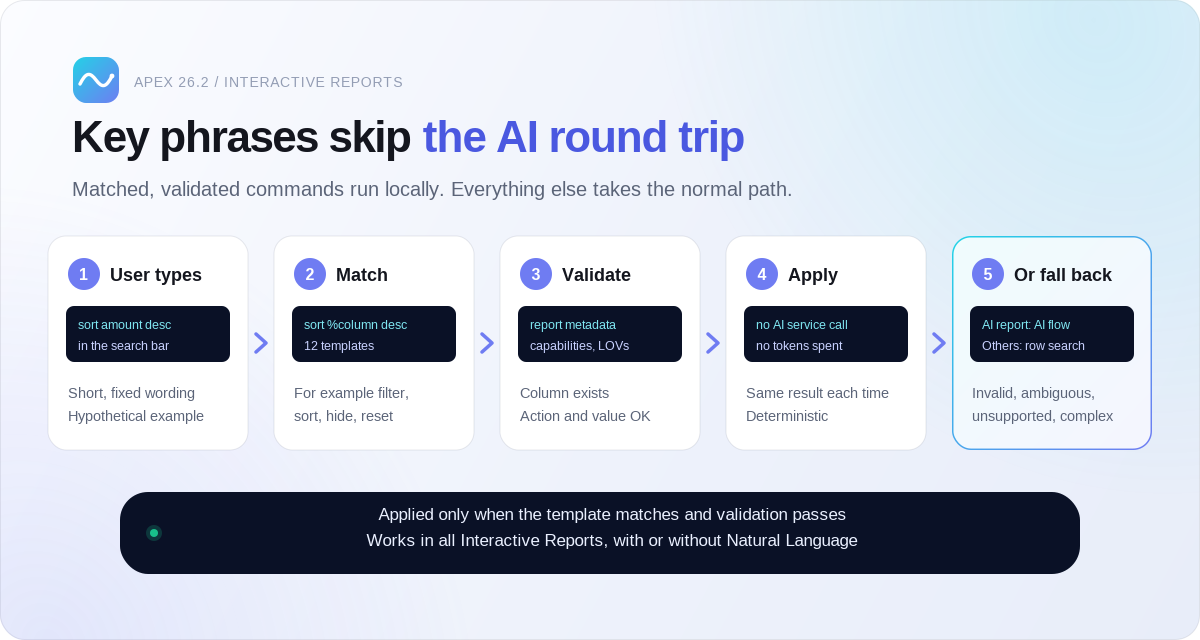
Two conditions must hold: the input matches a template, and the placeholders pass validation. According to the blog, APEX checks them against the current report metadata, the enabled report capabilities and the available LOV or reference data. The release notes put it more briefly: the input matches a key phrase and its column references match columns in the report.
For filter region by EMEA, Region must be a column of this report, filtering must be enabled, and EMEA must be acceptable for Region given its LOV or reference data. If any check fails, APEX does not guess. The request moves on.
When a request does not match
- AI-enabled reports. Requests that are invalid, ambiguous, unsupported, malformed or too complex continue through the existing AI Interactive Report flow. A misspelled column name becomes a normal AI request. A combined command such as
sort amount desc and hide notesmatches no template, so we expect it to go to the AI too. - Reports without Natural Language Support. The release notes say default processing continues, which on a plain report is the ordinary row search. The blog words it differently: “supported key-phrase requests are treated as row searches.” We read that as the search box staying a row search box that also recognizes phrases, but the sentence is ambiguous. Test both cases: a valid phrase should change the report, and an invalid one should behave like a plain text search.
Why this matters
- Latency. A matched phrase never waits on an AI provider. Oracle calls key phrases a fast path for everyday report actions but publishes no timings. In our view they should feel like the Actions menu, while an AI request adds a provider round trip.
- Cost. No AI service call means no tokens for that request. AI requests carry report context, column context and reference data, and Oracle’s Developer’s Companion warns that reference data adds tokens. If most daily requests are sorts, filters and resets, the savings add up. Oracle gives no figures.
- Predictability. Oracle calls key phrases deterministic. The same input on the same report gives the same result, so phrases are testable and safe to teach. A model can read the same request differently tomorrow.
- Reach. Key phrases need no Generative AI Service, so plain Interactive Reports get them too.
Designing reports so key phrases work
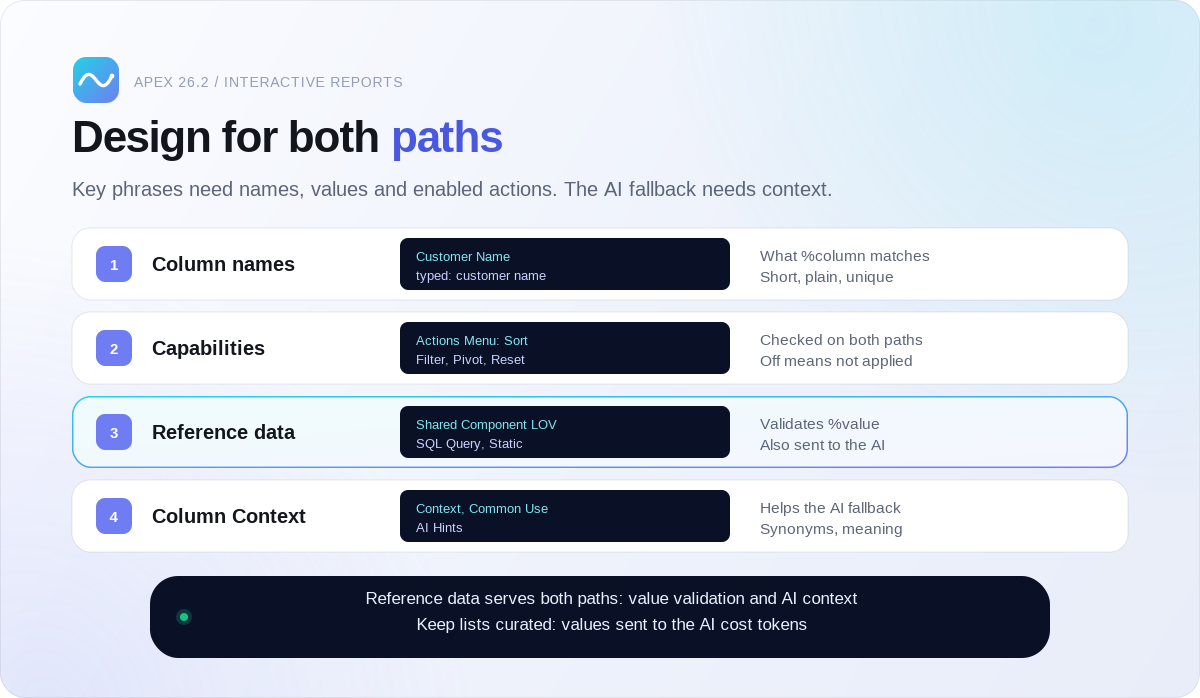
A phrase succeeds only if users can type the column name and value correctly and the capability is on. The AI fallback needs meaning and context instead. Good reports serve both paths.
Column names users can type
Oracle’s examples refer to columns by readable names, typed in lowercase (customer name for Customer Name). Oracle does not say whether matching uses the column’s Heading, its Alternative Label or its alias, so keep all three unsurprising. Our rules:
- Short, plain, unique headings. “Amount”, not “Amt (EUR) incl. VAT”.
- No heading that starts with another heading. “Region” next to “Region Manager” invites ambiguity.
- No template words in headings. “Sales by Region” collides with the “by” in
filterandpivot. - No HTML in headings. Oracle’s documented answer to formatted headings is an Alternative Label, used in dialogs.
Reference data and LOVs
Per the blog, %value is checked against available LOV or reference data. In a column’s Generative AI section, Reference Data Type can be None, Shared Component, SQL Query or Static Values. Oracle’s SQL Query example:
SELECT DISTINCT assignee d
     , assignee r
FROM eba_project_tasks- Give reference data to low-cardinality columns users filter by name: status, region, category.
- Teach
searchfor free text. For names or descriptions,search %column for %valueuses contains matching. - Keep lists curated. The same values go to the AI on the fallback path and cost tokens.
- Test display against return values. Users type names; the column may store IDs.
Column Context for the fallback
Column Context (Oracle suggests a Context, Common Use and AI Hints structure) is documented as help for the AI, not for key phrases. Put synonyms and business meaning there, so a near miss that falls back to the AI still lands.
Capabilities you enable
Key phrase validation checks enabled capabilities, and AI requests are limited to what the developer enabled. That makes the Actions Menu attributes (Filter, Select Columns, Sort, Control Break, Pivot, Reset and the rest) the real switchboard. Turn Pivot off where pivots make no sense, and neither path should apply one. Columns also have Enable Users To settings. Oracle says the AI respects a column with highlighting disabled, but not whether key phrase validation checks column-level settings.
A practical test checklist
- Write a phrase sheet: for each important column, one phrase per supported template, with real values.
- Run it on two copies of the report: AI-enabled and plain.
- Try variants:
sort amount desc,sort by amount descending, uppercase, extra spaces, a trailing period. - Try values: display value, return value, different case, a value outside the list.
- Switch one capability off, such as Pivot, and confirm the phrase no longer applies.
- Try short phrases like
resetandhide notesin Search with AI mode (see below). - Try near misses (typos, synonyms, combined commands) and confirm the fallback.
- Check the result is a normal setting users can see, edit and remove, and that it survives saving.
- Compare AI provider usage before and after a key phrase session.
- Repeat after upgrades and after translating the application.
What Oracle does not document (yet)
- Exact matching rules: case, punctuation, extra words, connector words. The blog templates and release note examples already differ.
- Which column name counts: Heading, Alternative Label or alias, and how multi-word or duplicate headings behave.
- The filter operator.
searchuses contains matching; the operator behindfilteris not stated. - Value matching: display or return value, case, and columns without an LOV or reference data.
- Column-level settings: whether Enable Users To is part of validation.
- Short inputs. The original AI Interactive Reports announcement says one or two words in Search with AI trigger an immediate row search; the 26.2 App Builder page says two or more words. Neither explains how that interacts with
resetorhide notes. - Configuration. The 26.2 GA announcement mentions “configurable key phrases”, but we found no documented way to add, change, disable or translate templates. All examples are English.
- Visibility. We found no documented way to see whether a key phrase or the AI handled a request.
- Provider outages. Matched phrases should keep working when the AI provider is down, since no AI service is invoked. That is our expectation, not a documented guarantee.
APEX 26.2 is available now for on-premises installations, with Oracle Autonomous AI Database following shortly and OCI and multicloud rollouts over the coming weeks. Key phrases need no AI service, but the fallback does, along with outbound access, credentials and monitoring; our article on AI-ready infrastructure for Oracle APEX covers that layer. If you want an upgraded, monitored APEX environment with a separate test instance for this kind of checking, see Cloud Hosting and the plans page.
Bottom line
Key phrases are a small feature with the right instinct: do not ask a model what a sort means. Clear, validated commands run locally and the same way every time, and the AI is kept for requests that need interpretation.
How well they work depends on things you control: speakable column names, curated reference data and deliberate capabilities. Build a phrase sheet and test it on every report.
FAQ
Do key phrases call the AI service?
No. When input matches a key phrase and its column references match the report, APEX performs the action locally without invoking an AI service.
Do I need Natural Language Support or a Generative AI Service?
No. Oracle states that key phrases work in all Interactive Reports, whether or not Natural Language is enabled.
What happens when a phrase does not match?
On an AI-enabled report, invalid, ambiguous, unsupported, malformed or overly complex requests continue through the AI flow. On other reports, default processing continues, which is the normal row search.
Can a key phrase apply an action I disabled?
It should not: phrases are validated against the report’s enabled capabilities. Test column-level settings separately, because Oracle does not say whether they are checked.
Can I add my own key phrases?
Not in any way we found documented. Oracle’s GA announcement calls key phrases configurable, but no configuration steps are published.
Are highlight, chart and group by available as key phrases?
No. The templates cover filter, search, sort, show, hide, pivot, control break and reset. Other actions use the Actions menu, or the AI on an AI-enabled report.
Sources
- Oracle APEX 26.2: What’s New in Interactive Reports and AI Interactive Reports
- Announcing Oracle APEX 26.2 General Availability
- Oracle APEX 26.2 Release Notes: New Features
- Oracle APEX 26.2 New Features overview (PDF)
- Introducing APEX AI Interactive Reports
- Adding Natural Language Support to Interactive Reports (26.2)
- Adding Natural Language Support to Interactive Reports (26.1)
- Customizing the Interactive Report Actions Menu (26.2)
- Managing Interactive Report Column Attributes (26.2)
- Exploring Data with Natural Language, Oracle APEX Developer’s Companion (26.2)