The short version
Interactive Reports are where many APEX users spend their day, so changes there reach a lot of people. APEX 26.2, generally available since October 6, 2026, refreshes it for every Interactive Report, AI-enabled or not:
- Filters in the column header. Several values for text columns, a minimum and maximum for numbers, presets and ranges for dates.
- Chips. Active filters and settings stay visible and can be removed one at a time.
- New dialogs and layout tools. Redesigned filter, chart, pivot and Group By dialogs, drag-and-drop column ordering, better frozen columns and a reorganized Actions menu.
- An automatic Reset button. On by default for new applications, off for existing ones, with an upgrade step that can disable your own reset buttons.
- Changed keyboard shortcuts in the search bar and header filters.
Oracle says saved reports, subscriptions and downloads remain compatible. Our AI Interactive Reports article covers key phrases and computed columns, and the APEX 26.2 upgrade checklist the release as a whole. This one is about the interface: what users see, what changes for developers and how to test it.
What end users get
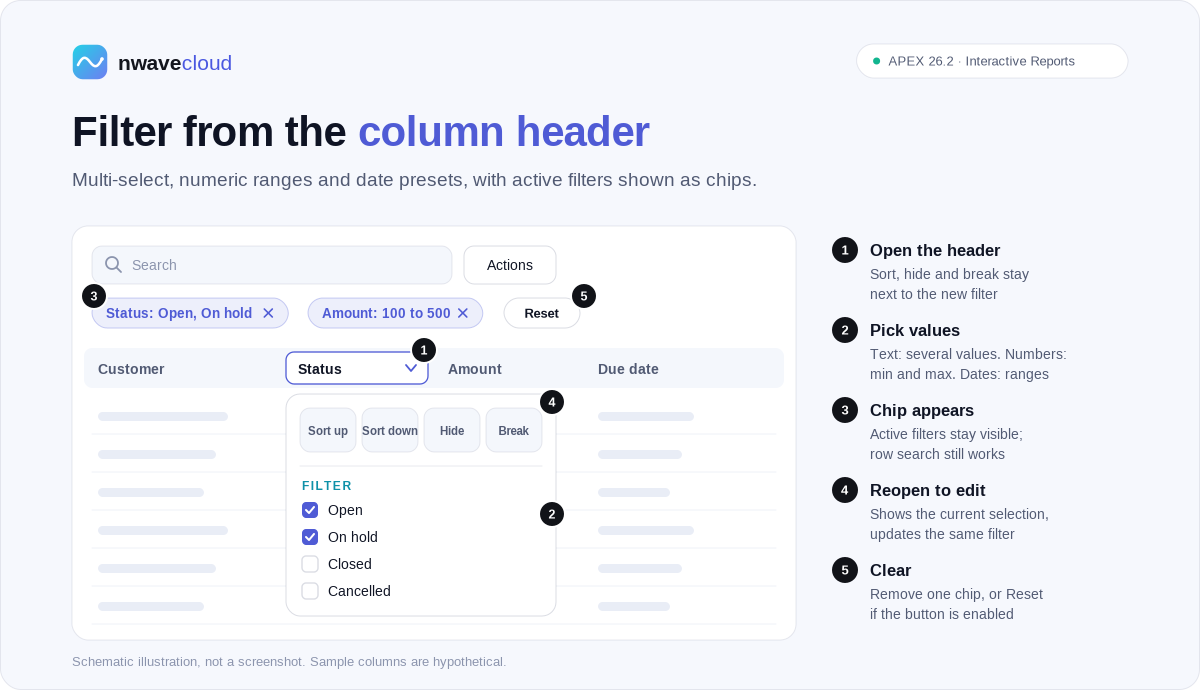
Filters live in the column header
The 26.2 release notes list filtering by column headers, multi-select for text columns, minimum and maximum ranges for number columns and custom date ranges for date columns. Oracle’s Interactive Reports post fills in the behavior:
- Text columns accept several values, useful for comparing a few statuses, stages or regions.
- Number columns use minimum and maximum inputs instead of a list of distinct values, so a lower bound, an upper bound or a range all work.
- Date columns combine presets, exact dates and start and end ranges.
The detail we like most: reopening a filtered column’s header shows the current selection, and changing it updates that filter rather than adding a conflicting one. That removes a common way to end up with an empty report. Sorting, hiding columns and control breaks stay in the header menu.
Chips show the report state
Active filters and report settings appear as chips, so users see what shapes the report without opening a dialog and can change or remove one filter without rebuilding the rest. The search bar still runs row searches alongside column filters, and column search now shows the columns in the ribbon.
Redesigned dialogs
- Filter: column and row selections use consistent pill-style controls, and operators get clearer labels and visual indicators.
- Chart: organized around chart type, title, orientation, grouping, metrics and drill-down behavior.
- Pivot: clearer separation between row columns, pivot columns and values.
- Group By: more context for the selected columns and functions.
Column order, frozen columns and the Actions menu
Users can reorder columns by drag and drop, frozen-column support is improved, and the Actions menu is reorganized so frequently used options are more prominent. Oracle gives no further detail on any of the three, so check your widest reports before writing user guidance.
Keyboard changes
The release notes list three changed shortcuts:
- With focus in the search bar input, the down arrow re-enters the search bar action.
- In column header filters, the up and down arrows cycle through values.
- The space bar selects or deselects a value.
Tell keyboard-first users, and update any accessibility test script.
The Reset button: plan this one
How the automatic reset works
APEX 26.2 adds an automatic Interactive Report Reset button. It appears once a user has applied filters or customizations and returns the report to its original state. It is toggled in Shared Components > Component Settings > Interactive Report, and the default depends on the application: Yes for applications developed in 26.2, No for existing applications.
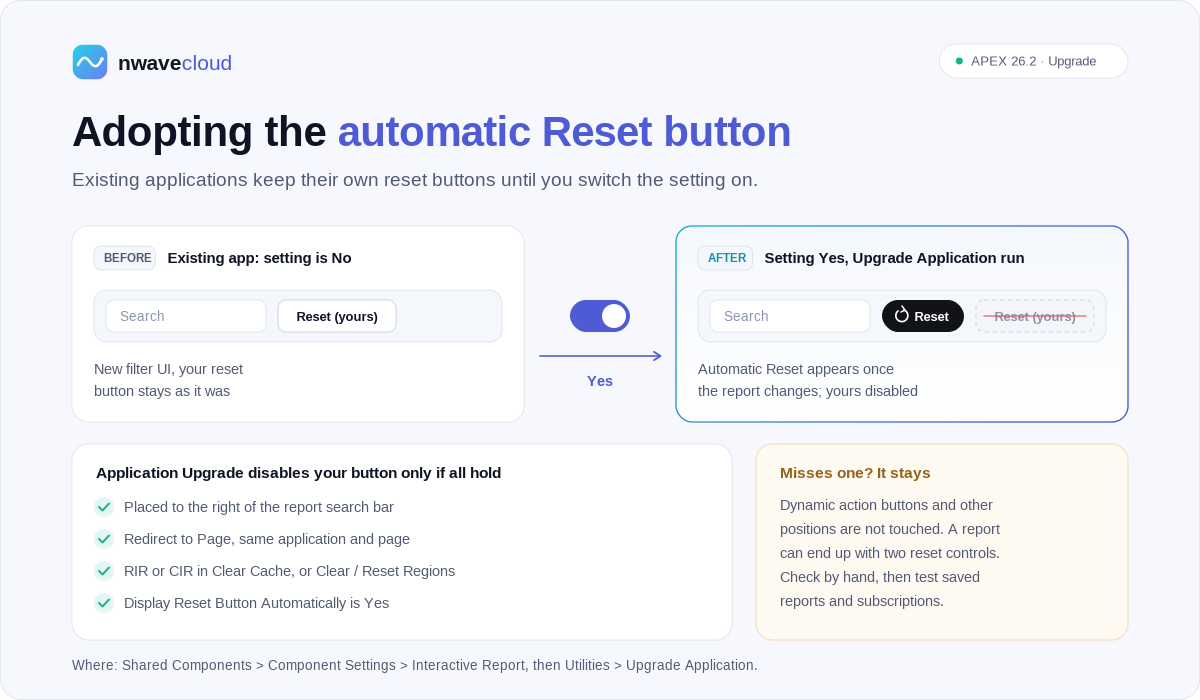
So after an upgrade, existing applications get the new filter interface but not the automatic Reset button. Until you switch it on, users reset as they do today: through the Actions menu, where the End User’s Guide still documents Reset, or a reset button you built.
There is a second reset path. In 26.2 the search bar of every Interactive Report accepts key phrases, even without natural language enabled, and reset, reset report, clear and clear report all reset the report. Matching input runs as an action, and the End User’s Guide describes no way to force a literal row search. Our reading: a user who types “clear” to find rows containing that word gets a reset. Test it and mention it in your user note.
What Application Upgrade does to custom reset buttons
The release notes say the Application Upgrade utility disables developer-defined reset buttons that meet these criteria:
- The button is positioned to the right of the Interactive Report search bar.
- Its action is Redirect to Page in the same application, targeting the page the button is defined on.
- The link has RIR or CIR in Clear Cache, or Clear Regions or Reset Regions selected as the action in the Link Builder.
- The Display Reset Button Automatically attribute is set to Yes.
Our reading is that a button must meet all of them, and the last criterion means only buttons that would duplicate the automatic one are affected. With the setting at No, nothing should be touched. Application Upgrade also does not run behind your back: per the App Builder guide, you open Utilities > Upgrade Application, pick an upgrade type, select the candidate objects and apply.
Two gaps to plan around. A reset button that misses any criterion stays, for example one built with a dynamic action or placed elsewhere, so a report can end up with two reset controls. And “disables” is not explained, so inspect one button in Page Designer afterward.
Saved reports, subscriptions and downloads
Oracle’s post is direct: “Existing saved reports, subscriptions, downloads, and report management capabilities remain compatible.” That is a statement about function, not appearance. Oracle does not describe how filters saved with the old dialogs appear as chips, so open some real saved reports and look.
Two smaller 26.2 changes touch saved report metadata: default report settings such as report, filter and highlight names, chart axis labels and computation labels now support substitutions, and saved report metadata supports text-message based translations. If a default report name or label contains text that looks like a substitution string, check how it renders.
What to tell end users
A short note before go-live saves tickets. Ours would say:
- Filter from the column header: pick several values, set a minimum and maximum on numbers, or choose a date preset or range.
- Active filters show as chips. Remove one without touching the rest.
- Your saved reports are still there.
- Drag columns to reorder them.
- Typing reset or clear in the search box resets the report.
- Where enabled, a Reset button appears once the report has changed.
Write your own help page with fresh screenshots rather than linking to Oracle’s. At the time of writing, the 26.2 End User’s Guide pages we read still describe filters in a Report Settings area and column ordering with Top, Up, Down and Bottom arrows.
A regression test plan for the upgrade
Run this on a copy of production, staged as our upgrade checklist describes.
- Inventory. Under Utilities > Interactive Report Utilities, Saved Reports lists saved reports (clear the Primary Default filter to include private ones) and Subscriptions lists subscriptions. Pick the most-used reports.
- Use real saved reports. Application exports include Primary Default, Alternative Default and public reports by default; private reports depend on the Export Private Reports attribute. A test copy built from an export may lack them.
- Saved reports. Open each sample and check filters, highlights, computations, control breaks and chart, pivot and Group By views. Change something, save, reopen.
- Header filters by data type. Text with several values, numbers with only a minimum, only a maximum and both, dates with presets and ranges. Include empty and boundary values.
- Filter links. Links that set filters with
IR[region HTML DOM ID]<operator>_<target column alias>, or reset withRRorCRin Clear Cache, should still produce the report you expect. - Subscriptions and downloads. Let a subscription fire and check the email (subscriptions need instance email and Download enabled), then download every enabled format.
- Custom CSS and JavaScript. Search page CSS, static files, theme customizations and dynamic actions for selectors aimed at the search bar, filter area, header menu or Actions menu. Oracle publishes no markup diff, so treat every such selector as suspect.
- Reset. Test with the automatic reset on and off, next to any custom buttons that remain.
- Keyboard, narrow screens and wide reports. Run the keyboard script, a phone-width check and your widest report with frozen columns.
What Oracle does not document
- An opt-out. We found no setting to keep the previous interface, and the Compatibility Mode section of the 26.2 Changed Behavior notes does not mention Interactive Reports.
- The reset setting itself. For Interactive Reports, the Component Settings section of the 26.2 App Builder guide documents only Actions Menu Structure (Interactive Grid or Legacy), and Oracle does not say how the 26.2 menu reorganization relates to it.
- The upgrade type that handles reset buttons.
- Markup and CSS class changes.
- Frozen columns and drag and drop, beyond one sentence.
We treat these as reasons to test, not reasons to wait.
APEX 26.2 is available now for on-premises installations, and Oracle said Autonomous AI Database would follow shortly, with OCI and multicloud over the coming weeks. The new report interface arrives with the upgrade itself, so your test window is the upgrade window. If you want separate test and production APEX environments with upgrades and monitoring handled for you, see Cloud Hosting and the plans page.
Bottom line
The 26.2 Interactive Report refresh is a real usability gain: filters where users look for them, visible report state and fewer contradictory filters. For developers the work is small but specific: decide on the automatic Reset button per application, clean up duplicate reset buttons and regression test saved reports, subscriptions and any CSS or JavaScript aimed at report markup.
FAQ
Can I keep the old Interactive Report interface after upgrading to 26.2?
Oracle does not document an opt-out, and the 26.2 Compatibility Mode notes do not mention Interactive Reports.
Will existing applications show the automatic Reset button?
No. It defaults to No for existing applications and Yes for applications developed in 26.2. Switch it in Component Settings for Interactive Report.
Will upgrading remove my custom reset buttons?
Only if you run Application Upgrade, and only buttons that meet Oracle’s criteria, one of which is the automatic Reset setting being Yes.
Do saved reports and subscriptions keep working?
Oracle says saved reports, subscriptions, downloads and report management remain compatible. Test a sample of real ones anyway.
Which keyboard shortcuts changed?
Down arrow re-enters the search bar action from the search input, up and down arrows cycle through header filter values, and the space bar selects or deselects a value.
Why did typing “clear” in the search bar reset my report?
In 26.2, reset, reset report, clear and clear report are key phrases that reset any Interactive Report, with or without natural language enabled.
Sources
- Oracle APEX 26.2: What’s New in Interactive Reports and AI Interactive Reports
- Announcing Oracle APEX 26.2 General Availability
- Oracle APEX 26.2 Release Notes: Changed Behavior
- Oracle APEX 26.2 Release Notes: New Features
- Key Phrase Support in Interactive Reports
- Resetting a Report
- Adding a Filter
- Selecting Columns to Display
- Subscribing to Report Updates by Email
- Managing Component Settings
- Upgrading Oracle APEX Applications
- Using Interactive Report Utilities
- Customizing Interactive Reports in a Running Application
- Linking to Interactive Reports