The short version
A small line in the APEX 26.2 Changed Behavior notes can change what you ship:
- The change. The Export Application wizard lost its Supporting Objects option. “If supporting objects exist in an application, they are part of the export.”
- Still in your control.
APEX_EXPORT.GET_APPLICATIONand SQLclapex exportstill let you include, leave out or auto install them. - Our advice. Never let a default decide. Every pipeline export passes
N,YorIexplicitly. - On import. Auto install is a command line setting, and the new 26.2 install API never raises, so check its errors function.
What supporting objects are
Supporting objects are how APEX packages an application’s database side. The App Builder User’s Guide describes installation scripts “that define your application’s supporting objects (including database objects, images, and seed data) and any preinstallation validations”, plus upgrade and deinstallation scripts. After an import, “the wizard asks whether to install the supporting application objects”, and users can also install them later.
That makes them powerful, and it makes them DDL. An export that carries supporting objects carries scripts that create, change or drop things in the target schema.
What changed in the 26.2 wizard
From the release notes: “The Supporting Objects option in Advanced Options region of the Export Application Wizard is no longer available. If supporting objects exist in an application, they are part of the export. To export an application without the supporting objects, use the APEX_EXPORT.GET_APPLICATION API or the SQLcl apex export command.”
So a quick wizard export, for a backup, a hand-over or a support ticket, now includes whatever scripts the app has. If that surprises the person receiving it, the export did not change. Your assumptions did.
Choosing the value in code
APEX_EXPORT.GET_APPLICATION
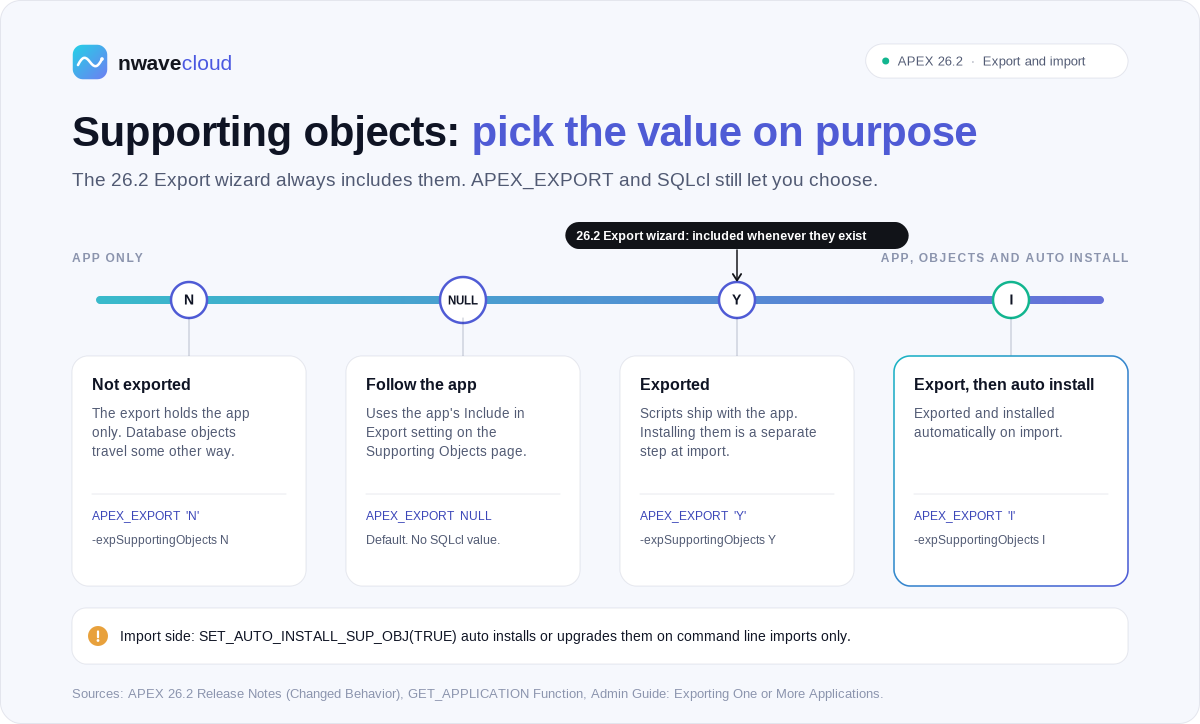
The p_with_supporting_objects parameter is a VARCHAR2 defaulting to NULL. The API reference documents four behaviors:
| Value | Effect |
|---|---|
Y |
Exports supporting objects |
I |
Exports them and installs them automatically on import |
N |
Does not export supporting objects |
| NULL | Uses the application’s Include in Export deployment value |
The Include in Export setting lives at the top of the application’s Supporting Objects page. NULL is convenient, but it means the result depends on an attribute someone can change in App Builder.
SQLcl apex export
The 26.2 Administration Guide lists -expSupportingObjects: “Pass Y for yes, N for no, or the letter I to export and automatically install supporting objects on import”. For example:
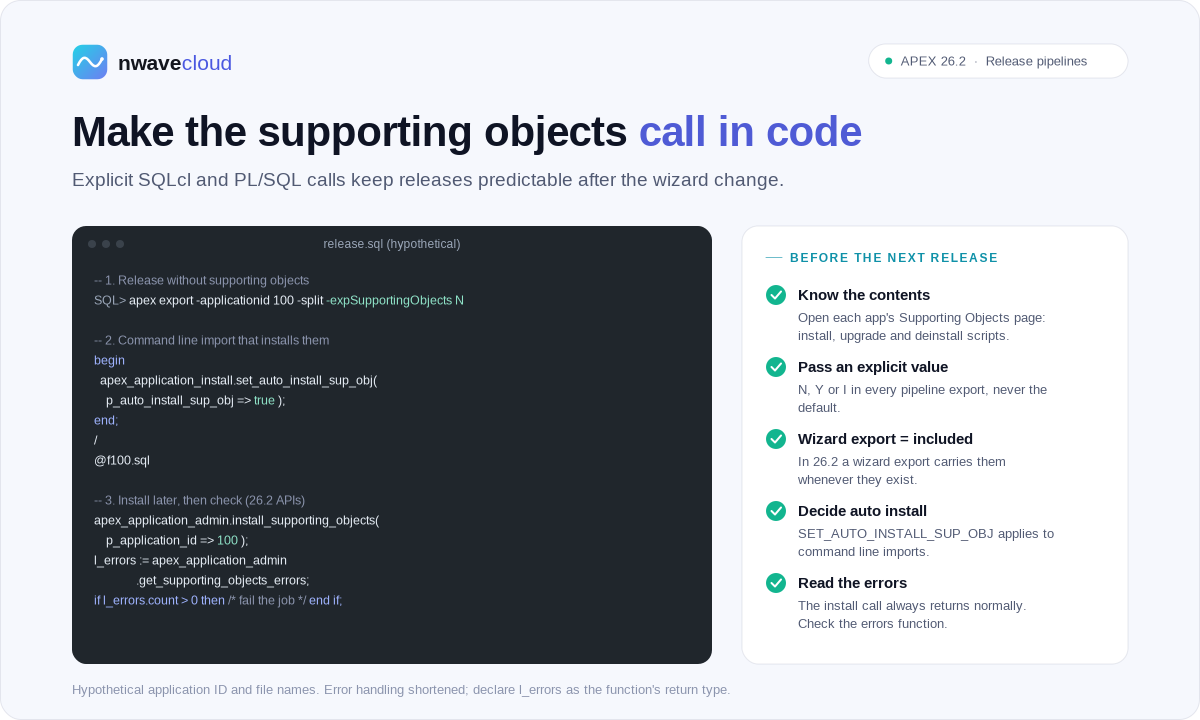
SQL> apex export -applicationid 100 -split -expSupportingObjects NInstalling them predictably
On the import side there are two tools.
For command line imports, APEX_APPLICATION_INSTALL.SET_AUTO_INSTALL_SUP_OBJ “is valid only for command line installs”. With TRUE, and an export that contains supporting objects, APEX “automatically installs or upgrades the supporting objects when an application is imported from the command line”:
begin
    apex_application_install.set_auto_install_sup_obj(
        p_auto_install_sup_obj => true );
end;
/
@f100.sql
From PL/SQL, any time, APEX 26.2 adds three subprograms to APEX_APPLICATION_ADMIN: INSTALL_SUPPORTING_OBJECTS, DEINSTALL_SUPPORTING_OBJECTS and GET_SUPPORTING_OBJECTS_ERRORS. The trap: calling the install procedure is always successful, and errors are only returned by the errors function. A job that does not read it reports success whatever happened. We covered the details in our Working Copy APIs article.
A pattern that works
- Database objects in their own pipeline? Export apps with
N. Your schema migrations stay the single source of truth for DDL. - Self-contained app packages? Export with
Y, and decide installation at import time:SET_AUTO_INSTALL_SUP_OBJon the command line, orINSTALL_SUPPORTING_OBJECTSfollowed by an error check. - Packages for others to install?
Iis the hands-off option. Use it only when you are sure the install scripts are safe to run on import. - Wizard exports. Treat them as “objects included”. Before sending one outside the team, look at the Supporting Objects page.
A short checklist
- Every app’s Supporting Objects page reviewed: install, upgrade and deinstall scripts
- An explicit
N,YorIin every scripted export, no NULL - Wizard exports treated as carrying supporting objects
- Auto install decided per environment for command line imports
GET_SUPPORTING_OBJECTS_ERRORSread after every scripted install- The 26.2 change added to your upgrade checklist
Release pipelines are part of what we run for customers on nwavecloud Cloud Hosting, see the plans page.
Bottom line
APEX 26.2 makes the wizard simpler by removing a choice. The choice still matters, so move it into code: one explicit flag on export, one explicit decision on import, and one error check after every install.
FAQ
Can I still export an app without supporting objects in APEX 26.2?
Yes, with APEX_EXPORT.GET_APPLICATION and p_with_supporting_objects => 'N', or SQLcl apex export with -expSupportingObjects N. The Export Application wizard no longer offers the option.
What does the value I mean?
Export the supporting objects and install them automatically on import. Both GET_APPLICATION and SQLcl accept it.
What happens if I pass NULL to GET_APPLICATION?
APEX uses the application’s Include in Export deployment value from the Supporting Objects page.
Does SET_AUTO_INSTALL_SUP_OBJ work for App Builder imports?
No. Oracle documents it as valid only for command line installs.
How do I know a scripted install worked?
Call APEX_APPLICATION_ADMIN.GET_SUPPORTING_OBJECTS_ERRORS after INSTALL_SUPPORTING_OBJECTS. The install call itself always returns normally.
Sources
- Oracle APEX 26.2 Release Notes: Changed Behavior
- APEX_EXPORT.GET_APPLICATION Function (APEX 26.2)
- Exporting One or More Applications (APEX 26.2 Administration Guide)
- How to Create a Custom Application (APEX 26.2 App Builder User’s Guide)
- APEX_APPLICATION_INSTALL.SET_AUTO_INSTALL_SUP_OBJ Procedure (APEX 26.2)
- INSTALL_SUPPORTING_OBJECTS Procedure (APEX 26.2)
- GET_SUPPORTING_OBJECTS_ERRORS Function (APEX 26.2)
- Oracle APEX 26.2 Release Notes: New Features