The short version
APEX 26.2 adds a small Workflow Designer feature with an outsized effect on change management: Export Diagram. It sits in the Layout Menu of the diagram toolbar and downloads the current workflow version as a PNG or SVG file, either the whole diagram or only the visible viewport, at Standard, High or Very High resolution.
That sounds cosmetic, but it solves an old problem: the people who approve a process change (business owners, auditors, change boards) rarely open App Builder. Our recommendation:
- Export the Active version and the proposed In Development version with the same settings, and attach both to the change request.
- Use draft activities to agree on the shape of a change before anyone builds it.
- Commit the approved images next to the APEXlang source in Git.
For the wider 26.2 workflow release (instance migration, custom outcomes, Fail events), see our APEX 26.2 workflow overview.
Where Export Diagram lives
Open a workflow version in the Workflow Designer. The diagram toolbar has a Layout Menu with two entries: Default Router Setting, which sets direct or orthogonal connections, and Export Diagram.
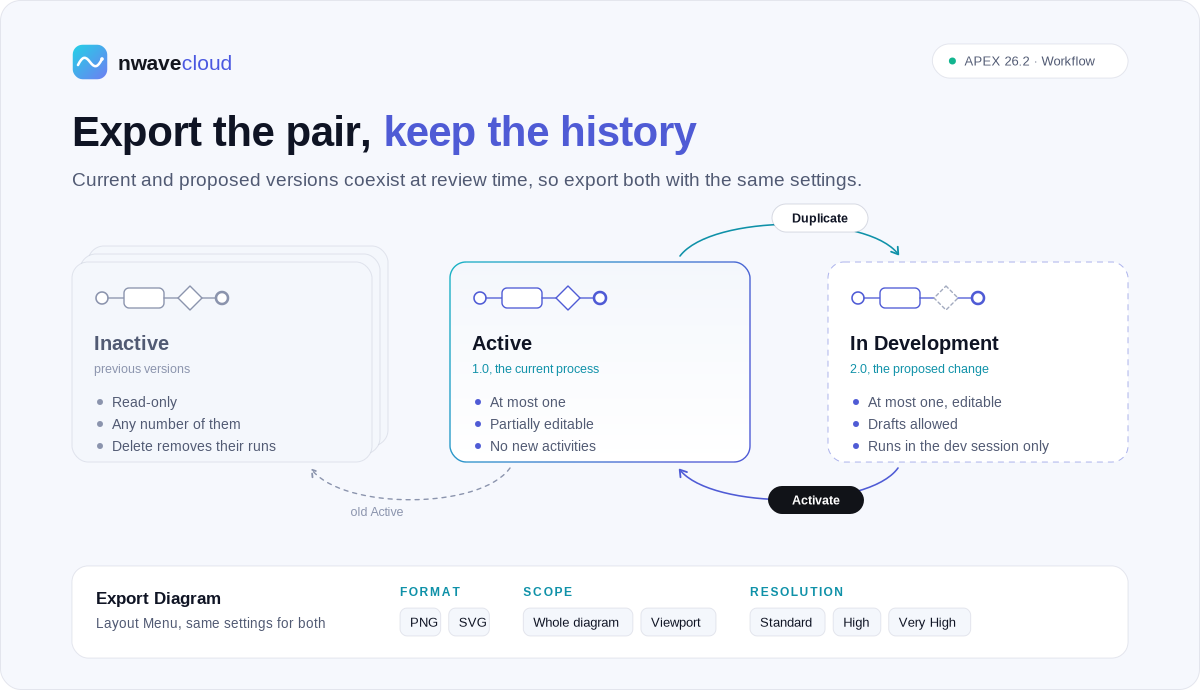
Export Diagram offers three choices:
| Option | Values |
|---|---|
| Format | PNG or SVG |
| Scope | Whole diagram or visible viewport |
| Resolution | Standard, High or Very High |
Oracle positions the feature for “documentation, presentations, and design reviews”. The release notes describe the result as a download, so the file lands on your machine, not in the application.
PNG or SVG: our guidance
The documentation does not recommend one format over the other, so this part is our opinion.
- PNG for people. Change tickets, email, chat and Word or PDF documents preview PNG almost everywhere. Use High or Very High so small labels stay readable.
- SVG for the record. SVG is a vector format, so a large workflow stays sharp at any zoom level. It suits wikis, documentation sites and Git.
- Both, when in doubt. Exporting twice costs seconds. We attach PNG to the change request and commit both, because some ticketing tools do not preview SVG.
Whole diagram or viewport
Export the whole diagram for anything that serves as a record: the approval attachment, the Git copy, the audit file. Use the visible viewport for close-ups of the branch that changes, zoomed in with the toolbar and positioned with Show Navigator View. A viewport image supplements the full export; it never replaces it.
Prepare the diagram before you export
An export shows the diagram as you laid it out, so a few minutes of tidying pays off.
- Pick a connection style. Default Router Setting applies direct or orthogonal routing, but connections you styled individually keep their own setting. We find orthogonal lines easier to follow.
- Align activities. The drawing area snaps to a 10 pixel grid and shows dotted alignment lines.
- Write meaningful labels. The activity Label is what the diagram displays, and all a business reader sees.
- Expand parallel flows. Parallel Flow activities can collapse their branches.
- Export invoked workflows separately. An Invoke Workflow activity opens its child workflow as its own diagram.
Then remember what the picture leaves out. The Workflow Diagram Builder does not show workflow variables, parameters, activity variables or participants; those live in the Workflow Designer Tree. Two of the edits the documentation allows on an Active version, adding activity variables and adding participants, therefore never appear in an export. Every change request still needs a short written list of what the diagram cannot show.
Drafts: review the shape before you build it
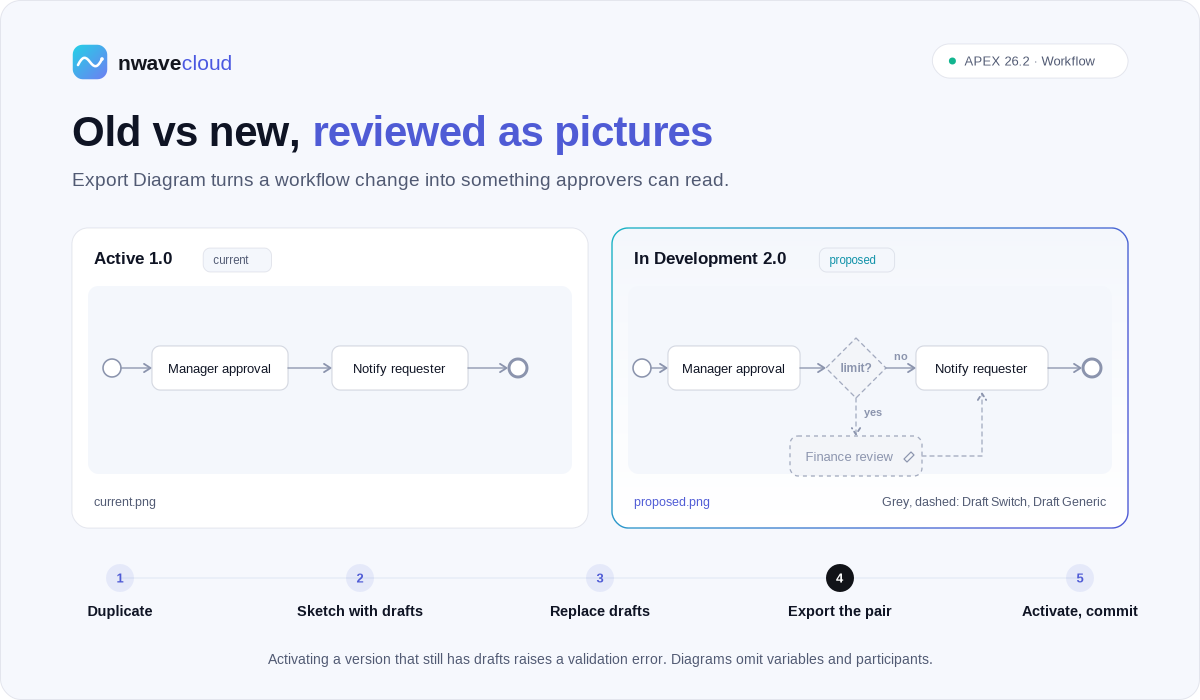
The activity palette has two tabs, Activities and Draft Activities. The three draft types are Draft Generic (a rectangle for any step), Draft Switch (a diamond for a fork) and Draft Wait (a clock for a wait). They are placeholders without an implementation, and the diagram shows them greyed out with a pencil icon.
That marker is what makes drafts useful in a review: an exported diagram shows a business owner exactly which steps are agreed but not yet built. Oracle’s 26.2 feature overview says it directly: “Teams can save and review the overall workflow early”.
The 26.2 documentation is clear on the rules: draft activities are only allowed in In Development versions, and activating a version that still contains drafts raises a validation error. A draft model cannot reach production by accident.
Versions, and why old vs new works
A workflow version is In Development, Active or Inactive. There is at most one In Development and one Active version at a time, plus any number of Inactive ones, which are read-only. In Development versions are editable but run only in the developer session. Active versions are only partially editable and you cannot add activities to them, so a structural change means duplicating the Active version, editing the In Development copy and activating it. Activation moves the previous Active version to Inactive.
This is what makes side-by-side exports work. At review time, the current process (Active) and the proposed one (In Development) both exist in the Workflow Designer, so you can export each with identical settings. Reviewers compare two pictures at the same scale instead of reading a description of the difference.
Version labels are free-form: the documentation shows both a name such as New and a number such as 1.0, and Oracle’s 2023 lifecycle post noted that semantic versioning was not supported yet. Pick one convention per team, because the label ends up in your file names.
A change review, step by step
Here is our process, applied to a hypothetical change. An expense approval workflow, Active version 1.0, routes every claim to the employee’s manager. Finance wants a second approval above a threshold.
- Duplicate the Active version. Right-click it in the Designer Tree and select Duplicate. The copy is In Development; label it
2.0. - Sketch with the business owner. Add a Draft Switch for “above threshold?” and a Draft Generic for “finance approval”, connect them and save.
- Export the sketch. Whole diagram, PNG, High resolution. The owner signs off on the shape, with the greyed-out drafts showing what is still to be built.
- Build it. Replace each draft with its real activity type, here a Switch and a Human Task - Create. Clear every error in Show Messages, then test by running the application from App Builder, which uses the In Development version in your developer session.
- Export the pair. Version
1.0(Active) and2.0(In Development), whole diagram, same format and resolution, plus a viewport close-up of the new branch if it helps. - Attach and describe. Attach both images to the change request, with a written list of what the diagram cannot show: new variables, participants and task definitions.
- Approve, activate, commit. Activate
2.0(activation also requires participants and an Active version of any invoked workflow). Optionally export it again as Active to confirm it matches what was approved, then commit the images with the APEXlang source.
Claims already in progress on 1.0 keep running on the old version unless you migrate them, a separate decision our workflow overview covers.
Keeping exports in Git next to APEXlang
In 26.2, a workflow is an APEXlang component of the application. Its version component records the label (workflowVersion) and the state (inDevelopment, active or inactive), and each activity has a type whose values include draftGeneric, draftSwitch and draftWait. Versions and activities also carry a diagram property whose format the reference does not describe.
So the .apx diff is the precise record, but a process owner cannot read it. The images are the human-readable record. Committed together, they give an auditor the approved picture and the deployed definition in one history. Our conventions:
- Folder. Oracle positions the Standard APEXlang export for source control. Keep images in a separate folder beside it, for example
docs/workflows/EXPENSE_APPROVAL/, so exports and imports never touch files they do not own. - File names. The documentation does not say whether an exported image includes the workflow name, version or date, so put them in the file name:
<static id>_<version>_<state>_<scope>.<ext>, for exampleEXPENSE_APPROVAL_1.0_active_full.svg. Prefix ticket attachments with the change request number. - Draft check. Searching a pull request for the three draft type values shows whether it still contains unbuilt steps.
Keep the exports of retired versions too. Deleting an Inactive version also deletes its workflow instances, and after that the committed image is the only picture of that process left.
What Oracle does not document
The 26.2 documentation we read leaves these points open:
- No programmatic export. We found no PL/SQL API, SQLcl command or REST endpoint for it, and the release notes list
MIGRATE_INSTANCEas the only newAPEX_WORKFLOWsubprogram. Export is a manual, per-version action. - No resolution details. Pixel sizes for the three levels are not stated, nor whether the setting affects SVG.
- No content details. Whether collapsed parallel flows export expanded, and whether the image carries a title or version, is not described.
- No visual compare. The version management documentation does not cover comparing versions. Side-by-side exports are the comparison.
- The diagram property. The APEXlang reference lists
diagramon versions and activities without describing its content.
Test these yourself before writing them into a formal procedure.
Oracle released APEX 26.2 for on-premises installations on October 6, 2026, with Oracle Autonomous AI Database, OCI and multicloud rollouts announced to follow. A review process like this assumes development and production environments on the same APEX version, so the diagram you approve is the one you deploy. Our APEX 26.2 upgrade checklist covers getting there, and APEXlang file-level import in APEX 26.2 explains why we still release complete applications. For managed test and production environments, see Cloud Hosting and the plans page.
Bottom line
Export Diagram is a small menu entry that makes workflow changes reviewable by the people who own the process. Export the Active and proposed versions with identical settings, note in writing what the diagram cannot show, and commit the approved images with the APEXlang source.
Until Oracle offers a programmatic export, make it a checklist step rather than something you remember.
FAQ
Where is Export Diagram in APEX 26.2?
In the Workflow Designer, in the Layout Menu of the diagram toolbar, next to Default Router Setting.
Should I export workflow diagrams as PNG or SVG?
Oracle supports both and recommends neither. We use PNG for change requests because it previews almost everywhere, and SVG for Git and documentation because it scales without blurring.
Which versions should I export for a change review?
The Active version and the proposed In Development version, with the same scope, format and resolution, plus the draft sketch if you made one.
Can a workflow version with draft activities go live?
No. Draft activities are only allowed in In Development versions, and APEX raises a validation error if you try to activate a version that still contains them.
Does the exported diagram show participants and variables?
No. The Workflow Diagram Builder does not show workflow variables, parameters, activity variables or participants, so describe those changes in writing.
Can I export diagrams from SQLcl or PL/SQL?
We found no documented API, SQLcl command or REST endpoint for it in APEX 26.2. Export is a manual action in the Workflow Designer.
Sources
- About Workflow Designer (26.2)
- About Workflow Definitions (26.2)
- About Workflow Versions (26.2)
- Managing Workflow Versions (26.2)
- Creating a Workflow Activity (26.2)
- Oracle APEX 26.2 Release Notes: New Features
- What’s New in Oracle APEX 26.2
- Oracle APEX 26.2 New Features (PDF)
- Announcing Oracle APEX 26.2 General Availability
- APEX Workflow Development Lifecycle and Management
- APEXlang Reference: workflow
- APEXlang Reference: version
- APEXlang Reference: activity
- APEXlang in Practice: Export, Edit, Validate and Import Oracle APEX Applications